Dashboard Access & Permissions
Last updated: August 10, 2026
Access the Verisoul Dashboard by logging in to https://dashboard.verisoul.ai/.
Roles and Permissions
Everyone in your Verisoul workspace has one of three roles: Viewer, Editor, or Admin. The role is chosen when you invite someone and can be changed later under Settings > Add a Team Member.
Viewer
A viewer has read access to the whole dashboard. Viewers can browse accounts, sessions, rules, lists, and analytics, open investigations, search and filter any grid, and export results. Controls that change something are hidden or greyed out for them.
Editor
Editors can do everything a Viewer can do, plus the day-to-day work of running the product. Editors can create and edit rules, turn rules on and off, manage lists, add or remove accounts, delete accounts, start ID Check, Face Match, and Email Intelligence runs, create projects, and manage API keys, webhooks, and custom hostnames.
Admin
Admins can do everything an Editor can do, plus two workspace-level settings: editing risk thresholds for , and managing the team (inviting people, changing roles, removing members).
Viewer | Editor | Admin | |
View accounts, sessions, rules, lists, analytics, etc. | X | X | X |
Open account & session investigations and export data | X | X | X |
Create and edit rules | X | X | |
Manage lists | X | X | |
Start ID Check, FaceMatch, and Email Intelligence runs | X | X | |
Manage projects, API keys, webhooks, and hostnames | X | X | |
Edit risk thresholds | X | ||
Invite team members & change roles | X |
How to Add a Team Member
Reminder - only Admins can add new team members.
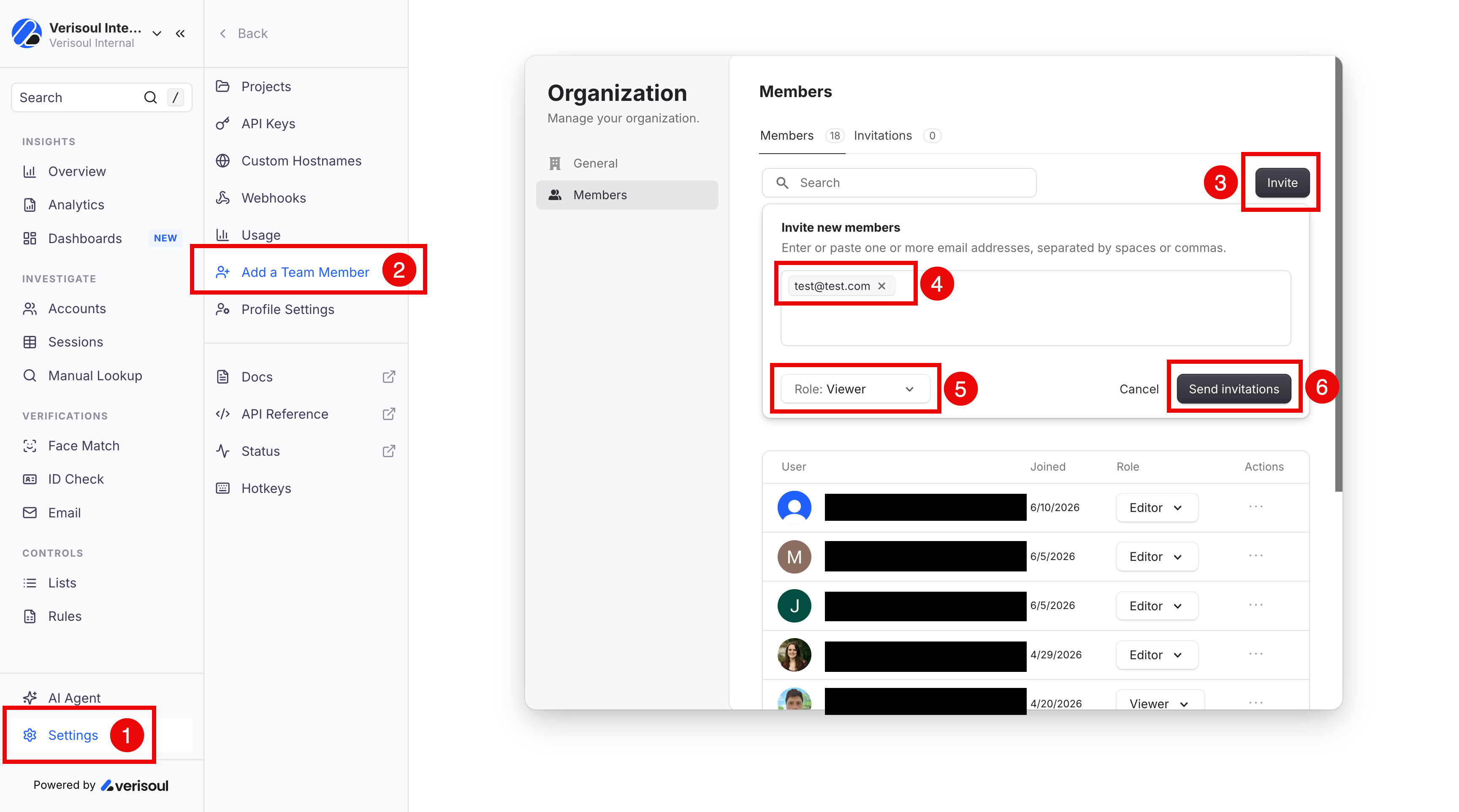
Navigate to Settings > Add a Team Member
Click the Invite button
Enter or paste one or more email addresses, separated by spaces or commas. Use the Select role drop-down to select which role all of these new invitees should have. If they need different permissions, add them in batches by role.
Click Send invitations
How to Change a Team Member's Access
Reminder - only Admins can change other team members' access.
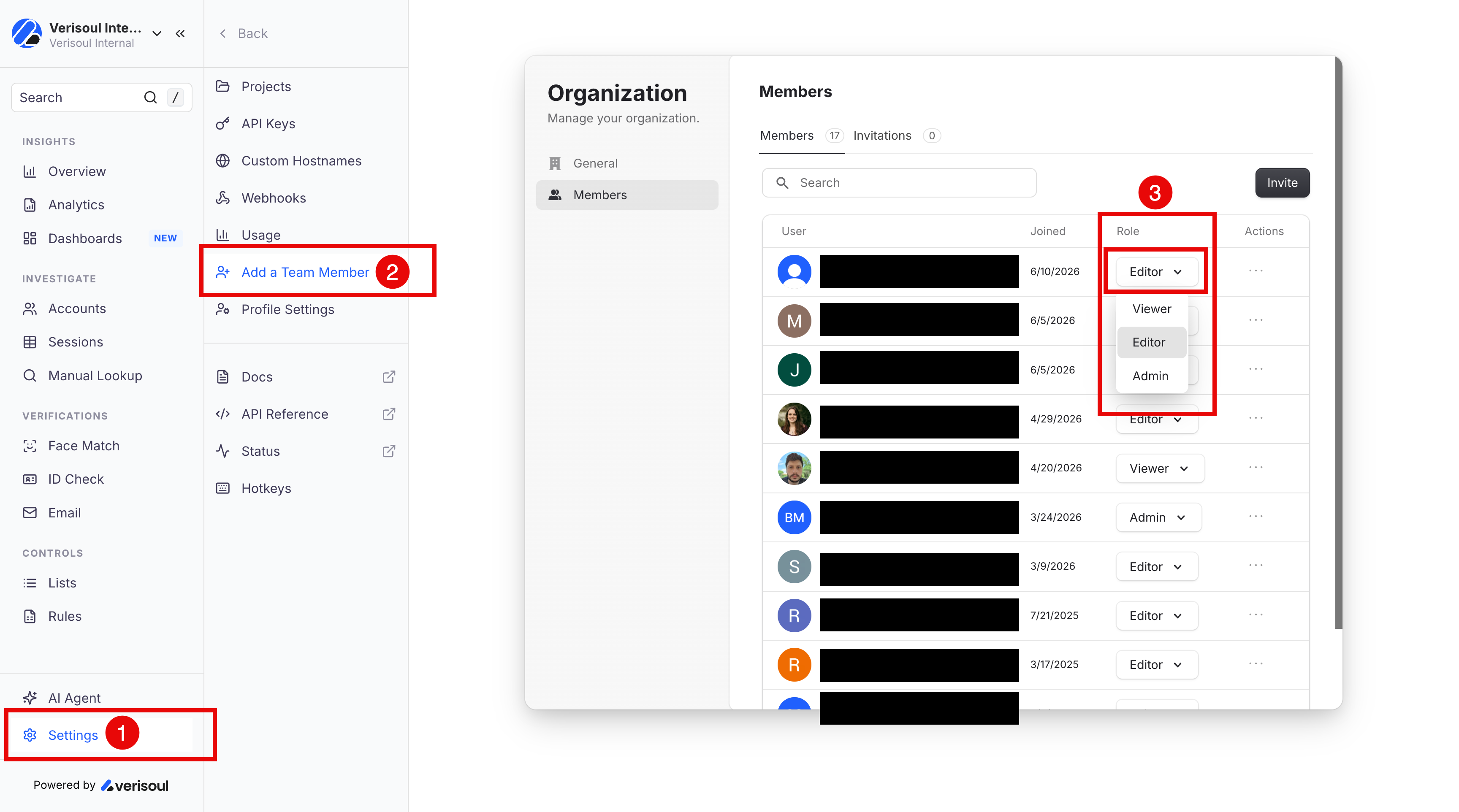
Navigate to Settings > Add a Team Member
Click the Role dropdown for the relevant teammate
Click the new role they should have
How to Remove a Team Member
Reminder - only Admins can remove team members.
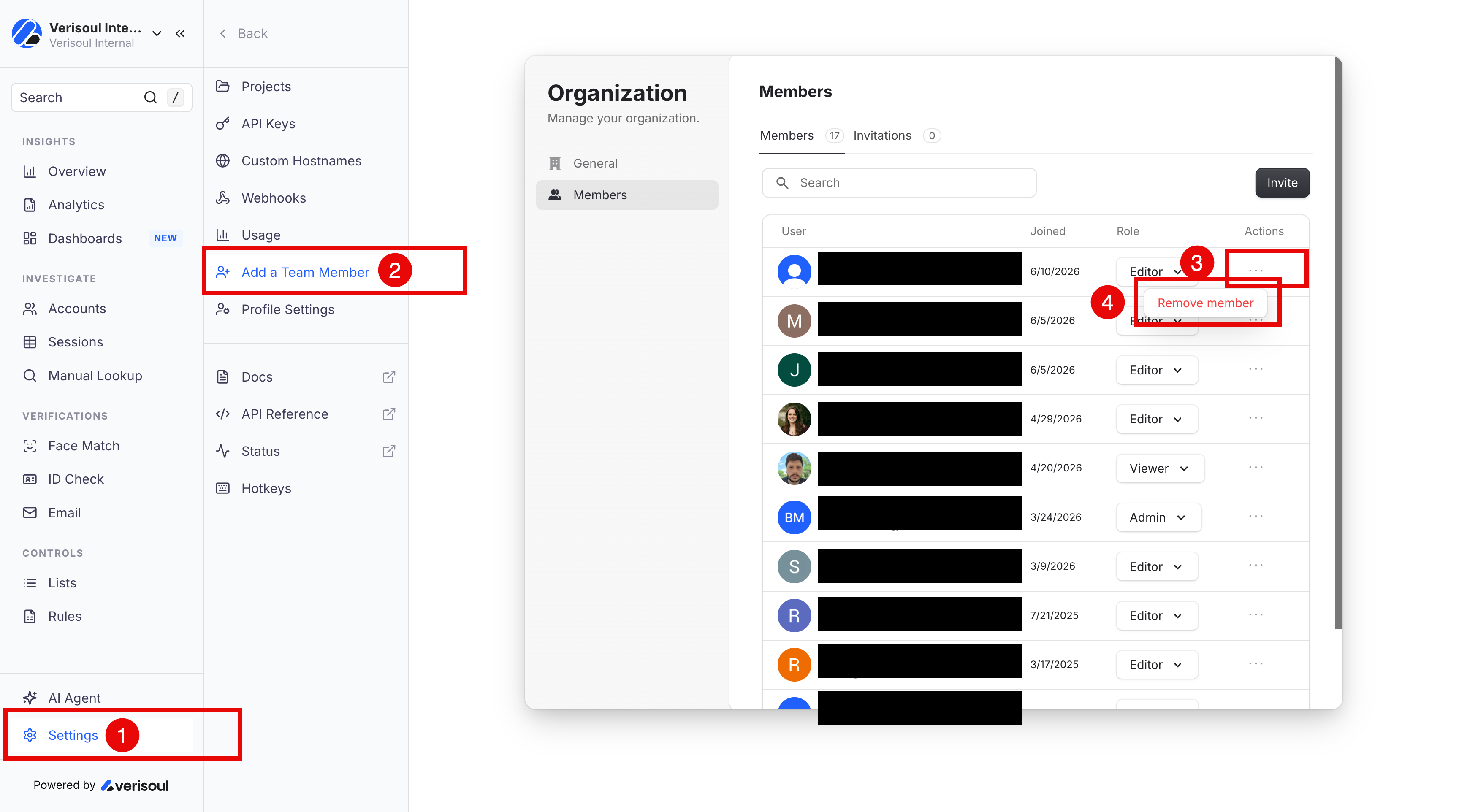
Navigate to Settings > Add a Team Member
Click the three dots under Actions for the relevant teammate
Click Remove member